Saturday, February 11, 2012

SharePoint 2010 Chart Web Part

To get started, first you need an Enterprise version of SharePoint 2010.  Assuming, you do have an Enterprise key, you then need to activate the SharePoint Server Enterprise Site Collection Features.ChartWebPartFeature

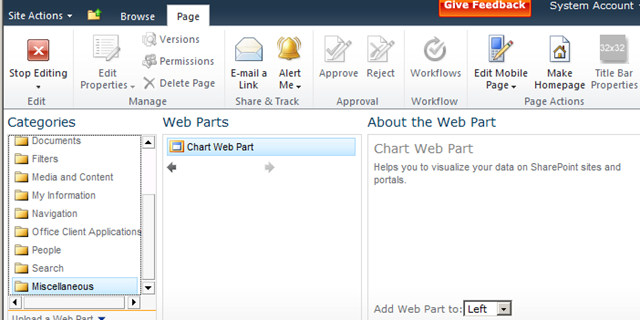
This adds the chart web part (among other things). Then edit any page and add a Chart Web Part. You can find it under Miscellaneous
ChartWebPartAdd

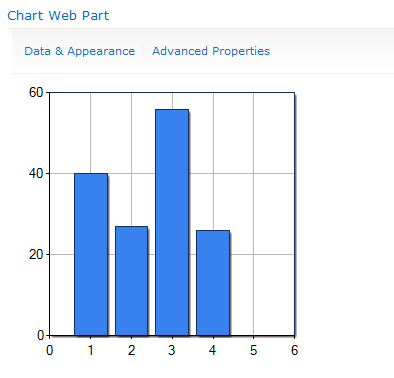
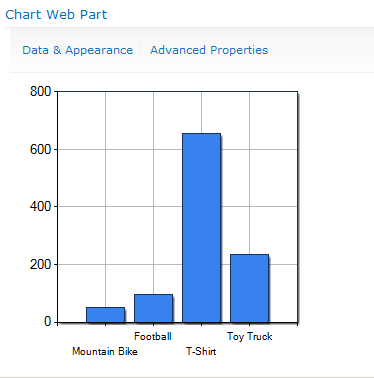
When you add it to the page, it uses some dummy data and displays a simple bar chart.
ChartWebPartDefault

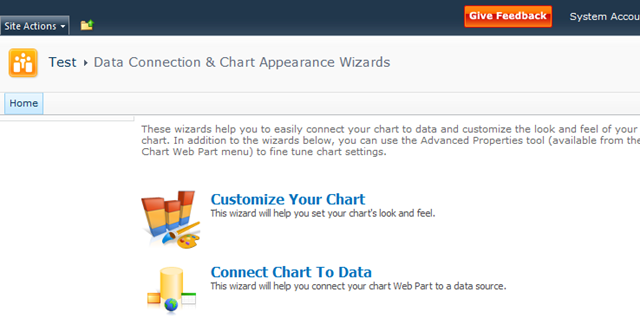
At this point, you might be asking yourself “What kind of data can I bind this to?”. By clicking Data & Appearance, you will see the following screen which leads you to links to customize the appearance or bind to data.
ChartWebPartDataAndAppearance

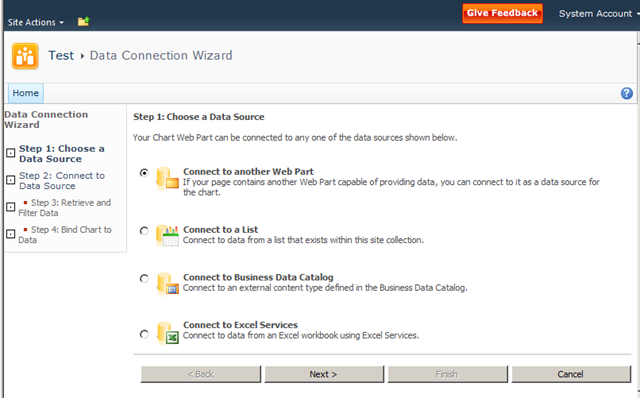
We’ll start by going to Connect Chat To Data. Look at these great options we have to choose from.
ChartWebPartDataSources

We can connect to another web part, a list, an external content type (looks like they need to update the BDC wording they have there), and to Excel Services.

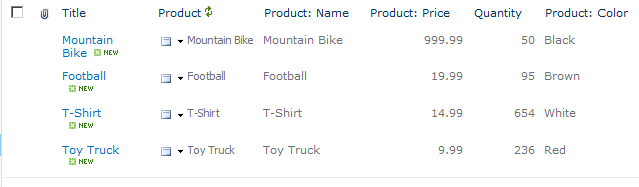
What I did is I created a new custom list to contain Sales information. I used an External Data field to allow the user to pick a product from the external content type and enter in some sales data in a field.
ChartWebPartList

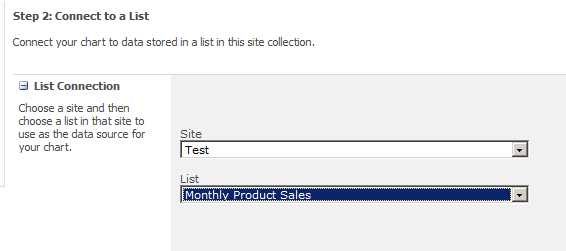
This is the list we are going to use on our chart. On the next step of the wizard, we are allowed to pick a list. Note that it also allows you to choose other sites in the collection as well.
ChartWebPartListDataSource

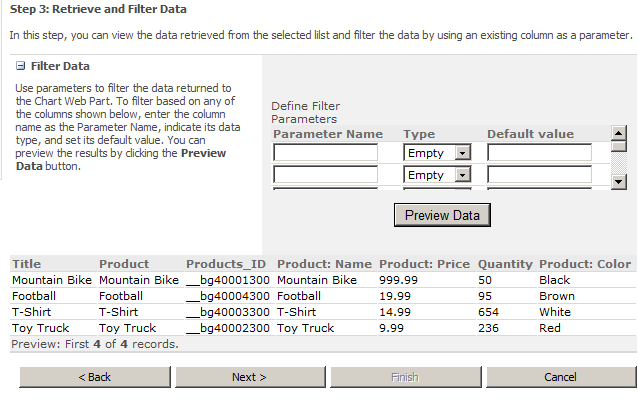
The next step allows you to filter your data first if you are so inclined.
ChartWebPartWizardFilterData

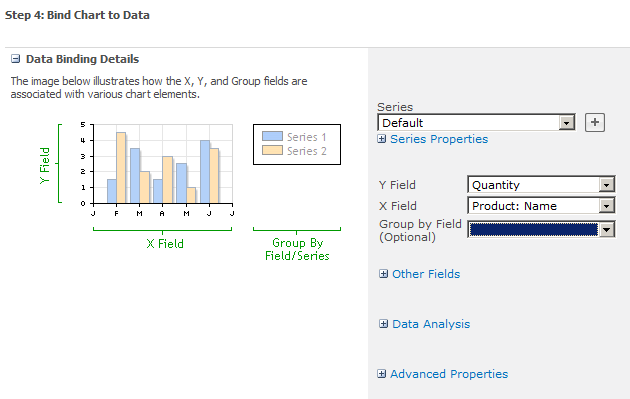
The Chart Web Part has a ton of configurable options. On this last step is where you will start seeing some of them. The main thing to set here is your X and Y fields. You can also specify something to group by as well.
ChartWebPartWizardBindData

Once you finish this last step, you’ll get something that looks like this.
ChartWebPartWithData

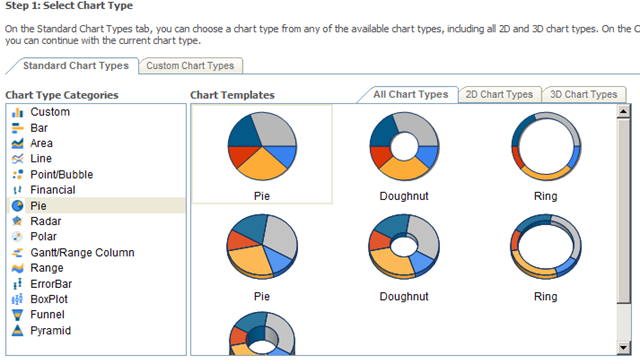
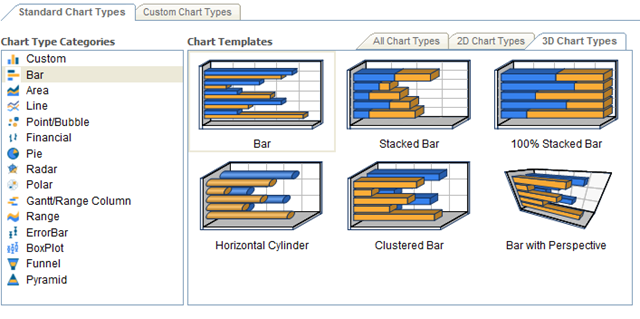
So, what we have here is a chart bound to data coming from a database (via external content type) and a SharePoint list. Pretty cool, right? I think so. It gets better though. What if your boss doesn’t like bar charts? No problem. There are tons of chart types to choose from. Just click on Data & Appearance again and then Customize Your Chart. Look at all of these built in chart types you have.
ChartWebPartOptionsPie
ChartWebPartOptionsBar

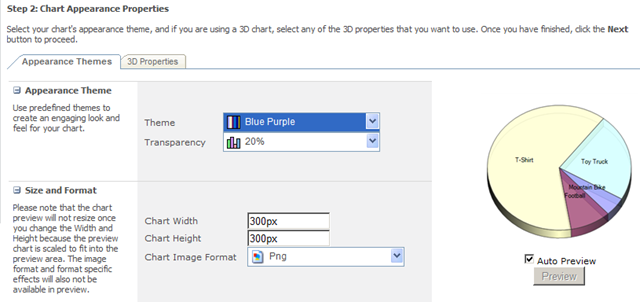
On the next step, you can further customize the chart you choose. It has some nice pre-built color themes and you can customize the size and what not. It also gives you a live preview as you change settings.
ChartWebPartOptionsPie2


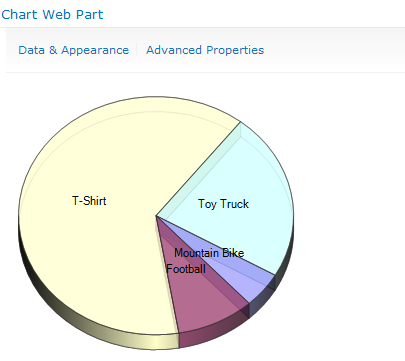
Here is what my new chart looks like.
ChartWebPartPie

Thursday, February 9, 2012

Forrester’s latest Wave for Enterprise Social software

Forrester has just published their latest research on Enterprise Social software systems. The Wave chart shown here indicates that Jive, IBM, NewsGator and Telligent lead the list of vendors. You can get the entire report at forrester.com.
In analyzing the top four leaders in the Enterprise Social Software space, Forrester says:
  • Jive SBS: “… continues to drive to establish and lead “social business” as a new software category.”
  • IBM Connections: “… continues to move fast and exploit early bets on social. The company is now actively integrating Connections with its broader portfolio — including its portal, content, and business intelligence product lines”
  • Telligent Enterprise: “… maintains a razor-sharp focus on analytics, a platform designed from the ground up for extension, and a growing and impressive stable of partners.”
  • NewsGator Social Sites 2.0: “…takes SharePoint’s social offering to higher levels through its close partnership with the software giant. “

Office 15 video demo

Saturday, February 4, 2012

What’s NEW in SharePoint 15

    Microsoft is, not surprisingly, not commenting. Anyone who is a member of the Technical Preview is, as Hough points out, under non-disclosure. So the answer is: wait and see.

Hough’s post included a thankfully short chunk of standard language: “Office 15 will help people work, collaborate, and communicate smarter and faster than ever before.”

You don’t have to be a rocket scientist to recognize the trends in the market, some of which Hough indicates in his post, including mobile devices, and the blurring of public and private cloud services and on-premise servers and clients.

Social and search are clearly hot, and Microsoft has demonstrated its commitment to investing in these spaces over the years.

Microsoft always works to improve scalability and manageability, and the features of SQL Server 2012 and Windows 8 Server certainly point to significant improvements in those areas, as well as redundancy and recoverability.

You’ve got to assume these features will feed up the “stack” into SharePoint’s capabilities.
There are also rough spots and gaps in functionality in the current versions of the product, and Microsoft has proven over the years that it does recognize many of those and fills them as the products evolve.

So there’s a lot of incredible opportunity for Microsoft to hit it out of the park with Office 15. My hope is that, for the enterprise, the impact of Office 15 could be as significant and valuable as what we’re seeing with the potential of Windows 8 in the client and consumer space.
It’s going to be a very interesting ride, and I look forward to reporting developments to you as Microsoft releases information.

WHEN will Office 15 release?


The Technical Preview milestone means that select customers can access the products now, or very soon. These customers typically have a tight support relationship with Microsoft during the preview.
While most customers will work with the product in non-production environments, my experience has been that some push the envelope and the limits of “bleeding edge.” Either way, when something goes wrong, Microsoft works to understand the problem, to support the customer, and to gain in-the-field experience with customer usage and product performance, to improve the product before releasing it as a public beta.

The Office 14 technical preview launched in July of 2009 and the public beta was announced at the SharePoint Conference and made available in November of 2009. That’s approximately four months of technical preview.
If I were a marketing wiz at Microsoft, I’d look at the calendar and spot TechEd North America and Europe in June—four months away—as a great place to pull back the curtain on such a significant overhaul of Microsoft’s lineup of non-OS products.

Doing the math, and looking at the calendar, I can certainly make educated guesses. I’d expect Microsoft to have ambitious targets, but to maintain its traditional public stance of “it’s ready when it’s ready.” Mary Jo Foley reports that her contacts peg the release by the end of the calendar year.
In any event, it’s clearly going to be in Microsoft’s next fiscal year, which runs July 1, 2012 to June 30, 2013.
It’s also obvious that, regardless of the exact product release date, the SharePoint Conference in Las Vegas will be well enough into the product release cycle to be chock-a-block with Wave 15 information.

HOW can I get my hands on it?

Right now, you cannot, unless you or your company are members of the Technical Preview, which according to Hough is already full. Keep in mind that Technical Preview used to be called Beta 1.
The product is not meant to be production ready at this stage, and Microsoft’s goal with the preview is to incorporate customer feedback into the product.

Office 15 Technical Preview

Microsoft announced the launch of the Office 15 Technical Preview on January 30. There’s some big news in the short announcement made on the Office Team Blog.    Let’s dissect the announcement and get answers to the questions that I hear from people about the next version of Office and SharePoint.
As announced by PJ Hough, the Corporate Vice President of the Microsoft Office Division, Office 15 reached the Technical Preview milestone on Monday. As word spread like wildfire, the most common questions are these: What’s Office 15? When will it be released? How do I get my hands on it? and, of course, What’s new?

WHAT is Office 15?

“Office 15” is the code name for the next versions of Microsoft Office products and services, just as “Office 14” was the code name for what became Office 2010, SharePoint 2010, and Visio 2010. Of course, the name of the product will likely change and I can’t imagine Microsoft straying from the decade-old trend of branding the product with the year—for example “Office 2012” or “Office 2013.” But, for now, it’s “Office 15” and you’ll hear its components referred to with the 15 moniker for coming weeks and months: SharePoint 15, Outlook 15, Visio 15.
‘Softies regularly refer to this new generation as “Wave 15.” And “wave” might be an understatement: tsunami is more like it. Microsoft’s ambitions are huge, as reported by Hough:
"With Office 15, for the first time ever, we will simultaneously update our cloud services, servers, and mobile and PC clients for Office, Office 365, Exchange, SharePoint, Lync, Project, and Visio."
Read this statement again folks: Microsoft is publicly saying it will update cloud services (Office 365), servers (SharePoint, Exchange and Lync), mobile and PC clients simultaneously. Unified communications (Lync/Exchange), Office apps, and collaboration, all at once. Holy upgrade, Batman! That’s huge!
There had been buzz about Microsoft releasing one side or the other (on-premises versus in the cloud) “first.” You might remember that Office 365 launched a full year after the on-prem version of SharePoint.
Not so this time around. Looks like Microsoft is delivering on its promise to be “all in” with the cloud this time around.   

Monday, January 16, 2012

SharePoint Implementation Checklist: Aligning People, Technology & Process

By Dux Raymond Sy
SharePoint adoption in the enterprise is growing at a rapid pace, but many organizations are still struggling to achieve the proper mix of “people,” “technology” and “process.” In the midst of just trying to figure out the technology side of SharePoint, many organizations overlook the people and process side of an implementation.
Pushed even further to the backburner are the “business value” considerations of SharePoint.
What is the purpose of implementing SharePoint in the first place?
How will SharePoint improve operations and drive overall business results?

Here’s a 30-point checklist that covers the business, people, technology and process components of a SharePoint implementation. Use this checklist to make sure that you have all of the correct elements in place during the planning phase of your SharePoint implementation which can apply to a brand new rollout, migration or even custom solution development. If you have already implemented SharePoint, you can use this list to uncover possible gaps and identify areas in need of improvement.


30-Point SharePoint Checklist


Business Drivers


  • What are the quantifiable top 3-5 objectives of the implementation? This means defining the value and scope for which all other questions will be framed.
  • Does the implementation have a sponsor from senior leadership that will champion the objectives mentioned above? Is there enough support at the right level to prevent starts/stops/restarts?
  • Will the implementation be funded out of IT or through the departments or divisions receiving the technology? Are there other major stakeholders that can change scope?
  • Is there a critical target date that cannot be missed? What resource costs will be involved to reach the target date? 

People


  • Who will define and steer the SharePoint platform as a service? How will this implementation impact other stakeholders and sustain the direction/funding for the project?
  • How many potential users will be using the system? Estimate by periods over time such as 200 Q1, 800 Q2, 5000 Q4, etc. to help project support resource needs.
  • What support model does the company currently use (e.g. help desk, train power users, online knowledge bases, etc.)?
  • How much excess capacity/budget is available for adding SharePoint to the current support mix? What is the resource bandwidth availability and required augmentation?
  • Do you have IT professionals in Microsoft Windows Server, Web technologies, Microsoft SQL Server, e-mail, network load balancing, etc.? What additional training or augmentation might be needed?
  • Do these IT professionals have sufficient bandwidth for the early peak of activity? Will they be able to sustain the system long-term? Do you need to add personnel for the peak of activity?
  • Is organizational change a managed process? If so, is there bandwidth for promotion, training, etc., to make the implementation successful in the organization? Are additional contract resources needed to help with the rollout?
  • How are IT policies enforced? More time might be needed to align security if enforcement mechanisms aren’t in place.
  • Have you done a stakeholder analysis to understand the change effort? How much time will need to be spent to convince opponents of the implementation?

Technology


  • Is your organization already running 64bit hardware/software in your data center? What possible hardware/software costs exist?
  • Are your environments virtual and/or full hardware based? Will hardware need to be purchased if the farm needs to expand beyond projections?
  • Is this implementation planned to offset current file storage? If so, what does current storage size look like in projection against SP storage (e.g. "we plan to move fileserver based storage to SP to take advantage of versioning and document/record management aspects and today we have 2TB of file shares which we want to condense to 1TB through use of this technology")?
  • Thinking about the objectives, what would the number of page visits look like after one year? How many times a day would someone access the system and how many files/lists would they interact with? This projects the farm configuration.
  • What SharePoint services are being projected to be used in the first year (Excel Services, PerformancePoint, InfoPath, Access Services, etc.)? This might increase the amount of support and training required.
  • Is there sufficient storage and server capacity to support this implementation for at least one year (2-3 years would be preferable)?
  • Is the Microsoft stack of products currently well used in the environment (Start-up, training, support costs)?
  • If Microsoft Office is currently being used on the desktop, what version(s) are supported and will there be a desktop rollout component?
  • Will there be non-Microsoft computing platforms used with this implementation (e.g. Mac, iPad, Android devices, non-Microsoft smart phones, etc.)? If so, how knowledgeable are your current development/branding resources in supporting multiple browsers (support, UI development and training costs)?

Process


  • If this implementation is to enhance current processes, how stable and defined are those processes (how crisp will workflows or custom code be defined)?
  • Has a gap analysis been done to map the processes to the technology to see if customization will be required? What is the potential amount of custom development?
  • Is branding important for this implementation (look and feel customization)?
  • Will this implementation support custom programming (multiple environments and lifecycle processes)?
  • How does this implementation fit into your current data security and disaster recovery processes? Will you need additional offline storage and recovery?
  • Will there be external company resources that will need to access this implementation (firewall and additional environments and security considerations)?
  • Are there compliance regulations that must be met (SOx, HIPAA, etc.)? This can add additional levels of configuration complexity.
  • Are there IT Audit requirements? Will there need to be additional storage for logs to support the detail required?

Wednesday, January 11, 2012

5 SharePoint 2010 Configuration Mistakes

#1: Using Virtualized Microsoft SQL Server

Virtualization isn't bad. But virtualization allows administrators to make mistakes on a much grander scale. Take virtualizing SQL Server. In the context of SharePoint, this process can be especially painful. The main mistake I see when virtualizing SQL Server is overcommitting the host, be it through RAM, CPU, or drive space. Because everything in SharePoint is stored in SQL Server, if SQL Server is slow, SharePoint is slow.
If you can't get a physical SQL Server box, then at the very least ensure that your virtualized SQL Server has a fighting chance. First, make sure that its virtual drives aren't thin provisioned. I/O is one of the areas in which virtualized SQL struggles the most, and thin-provisioned drives exacerbate that problem. Also try to put the SQL Server guests' virtual drives on their own spindles on the host. Doing so should improve I/O by preventing SQL from fighting other guests for time with the drives. Finally, you shouldn't allow the virtualization host to overcommit its RAM. If the host must swap to meet its RAM obligations, then it's slowing down SQL Server.
Brent Ozar has recorded a brilliant video on how best to virtualize SQL.

#2: Using the Farm Configuration Wizard

Using the Farm Configuration Wizard was a pretty common mistake when SharePoint 2010 first came out but thankfully has diminished as our familiarization with SharePoint 2010 has increased.
First, and maybe most heinous, is that all the databases that the wizard creates have nasty globally unique identifiers (GUIDs) at the end of their names. The wizard also creates a content web app, at http://servername, that just doesn't scale well. To add insult to injury, the wizard creates your My Site host on that same web app, at http://servername/my.
Finally, the wizard encourages you to create service applications that you might not actually use. It's tough to resist the siren song of those check boxes, I know.
The Farm Configuration wizard leaves its dirty handprints all over SharePoint, and it can be a challenge to clean up all of them. However, a few places can be easily fixed.
Start with your web apps. Create a web app for My Site and give it a Fully Qualified Domain Name (FQDN), such as mysites.company.com. Create a My Site host at the web app's root. Use the Windows PowerShell cmdlet Move-SPSite to move any My Site to one content database, and then attach that content database to your new web app. You'll also need to adjust your User Profile Service and tell it about your new My Site location.
Next, clean up your service applications. Go through your list of service applications and delete any that you aren't using. You gain no benefit from having a service application that you aren't going to use for another six months. After you've deleted unnecessary service applications, stop the associated service instances (also called services on server) that power them. If possible, remove the GUIDs from the service application database names. The technique for completing these tasks varies among service application; the Microsoft article "Rename or Move Service Application Databases (SharePoint Server 2010)" has directions for all the service applications. Of course, take good backups before doing any of this.

#3: Using One Account for Everything

Security is complicated, and SharePoint doesn't necessarily make it any easier. Using just one account -- maybe even the coveted Domain Administrator account -- is so easy. We've all done it, even though it's a bad idea. When you use an existing account, you open up SharePoint to several security issues. Anyone who knows the account password can do anything in SharePoint, so you can't separate duties. You also lose the ability to audit who made which changes. And if that common account password is compromised or needs to be changed. Even if you use one dedicated account for SharePoint, you leave yourself vulnerable to attack. If that account is compromised via a security exploit, the bad guys will have access to everything in SharePoint.
To fix this mistake, Add the sp_webapps and sp_serviceapps accounts as managed accounts.
You can change the default content access account for the Search service application at the Search Service Application page. Under Central Administration, Security, Configure Service Accounts, you can change the accounts that other processes use as well. (You can even change the Farm Account there. I've done so in test environments but haven't been brave enough to do it in production.) If you're using the User Profile Service, make sure that your new sp_userprofile account has the correct permissions in Active Directory (AD), and recreate your AD connection in the User Profile Service.
You can also use the steps that I describe in "How to create a SharePoint 2010 admin account and stop using sp_farm" to give an account the correct permissions to administrate SharePoint, without needing to use another highly privileged account.

#4: Keeping Default SharePoint Database Settings

When SharePoint creates its multitudes of databases, it makes some bad assumptions. Take the autogrow settings: The database files grow by 1MB at a chunk, almost ensuring that they're going to autogrow with every upload. Not only does this slow down SQL Server (which slows down SharePoint), but it also results in database files that are spread all over your drives in itty-bitty 1MB chunks.
SharePoint also creates most of its databases, notably the Config and Content databases, with the recovery model set to Full. Although this is great if you want to recover data, you must manage the process correctly or those sneaky .ldf files will slowly, methodically fill your hard disk. If you think users get upset when SharePoint is slow because of fragmented databases, you should see how angry they get when SharePoint stops completely because the SQL Server drives are full.
To fix this mistake, set your databases' autogrow settings in such a way that they don't need to grow frequently.
For most farms, I recommend changing the 1MB autogrow to something like 500MB or 1GB. Autogrow should also be a last resort. Someone, either the SharePoint administrator or a dedicated DBA, should pregrow your databases so that autogrow is unnecessary.
Your recovery model setting needs to be consistent with your disaster recovery plans. If you need your transaction logs, make sure you're performing routine log backups to keep those .ldf files in check. If you don't need your transaction logs, then consider switching your databases to the simple recovery model. Doing so will keep your .ldf files from swelling up like a nasty bee sting.

#5: Not Installing a PDF iFilter

Most organizations have a tremendous number of PDF files in their SharePoint farms, and those files represent a wealth of information. End users want to be able to discover that information by using SharePoint Search. Getting users excited about SharePoint Search is a great way to get them excited about SharePoint in general.
Installing a PDF iFilter is fairly easy. Adobe has a free PDF iFilter that you can install. You can find the download link and detailed installation instructions in the Microsoft article "SharePoint 2010 - Configuring Adobe PDF iFilter 9 for 64-bit platforms." You need to install the iFilter only on those SharePoint servers that run the Search Index role, although installing it on the rest of your SharePoint servers doesn't hurt. If you have a large farm and want to reduce the time needed to index your PDF files, you can use the PDF iFilter from Foxit. This product has better performance than the Adobe iFilter but isn't free.


Monday, January 9, 2012

a “solution” means just that—a solution to a problem

After your SharePoint implementation is up and running, users start to discover its capabilities and to demand solutions to business problems. How do you help users solve business problems with In fact, many solutions can be built with no code, using browser-configured functionality of lists, libraries, and content types, along with SharePoint Designer, InfoPath, Access, Excel, and other Office client applications.
From my point of view, There are three “best practices”—that create a trifecta for success.

Self-Help

Much of SharePoint’s powerful functionality is easily accessible to end users through the browser-based UI, SharePoint Designer, InfoPath and Office clients. Just because it’s easily accessible does not, unfortunately, mean that it’s easy to figure out how to build a specific solution—such as a form or a workflow to support a business process.
Even fundamental components—lists, libraries, content types, and metadata (columns)—are not necessarily straightforward to end users, particularly as they are focused on addressing a yet-unsolved business problem with SharePoint.

I am not a fan of the following statement:
“We sent our users to a five-day course on SharePoint.”
I’m a MCT. So for me to say, “Do NOT train users to use SharePoint” may seem surprising.

I do believe that users need various levels of training on SharePoint—at least a fundamental understanding of some of the core components and concepts. But my experience is that it is not effective—or at least not efficient—to teach a new user “everything they need to know” about things like workflows and forms and the inner workings of SharePoint because, simply, it’s too much.
What’s more important, in my opinion, is that users see the potential of SharePoint as a business problem solver, and that they know where to go for help.

When a user needs to create a solution—a form with a workflow for example—they only need to know the steps for doing so with InfoPath and SharePoint Designer for a couple of minutes or an hour. It’s at that moment that you must have resources ready to help the user succeed in helping themselves.
Google and Bing are not the best answer. There’s a tsunami of information much of which is irrelevant to your specific business, poorly written, or inaccurate.

Point users to specific resources, including the Microsoft Office website and to other selected resources that you find accurate, helpful, and relevant.
I also recommend two specific sets of resources as an internal training and knowledge base. Fellow MVP Asif Rehmani’s SharePoint Videos provides hundreds of short video clips that are excellent at providing just-in-time guidance to specific SharePoint tasks, including and importantly SharePoint Designer and InfoPath. Another MVP, Rob Bogue, offers the SharePoint Shepherd resources which tend to be more “text-and-picture” (versus video) based, and which cover many of the core concepts and functionality.

Community

Your users are the best sources of knowledge about how to use SharePoint in your environment, to solve your problems. You are missing out on a golden opportunity if you don’t capture this resource from Day 1.
Create a discussion forum about SharePoint usage. Keep it focused on usage—have a separate forum for technical support. Spotlight your internal evangelists and success stories.
A build a library of solutions. Again I mean this in the broadest sense.
Find a way to collect the knowledge that your users build about using SharePoint in your environment. A wiki and a library where they can drop documentation about “How I built X” is a start. Create a gallery where templates and other solutions can be found.

Escalation

Above all, there needs to be someone—or a team of people—to whom SharePoint usage questions can be addressed.
Someone who really knows how to use SharePoint and the tools listed earlier—or at least someone who is capable of “figuring it out” on demand.
Ideally, this person is highly skilled with no-code development (browser, SPD, InfoPath and Office) and has a knack for business analysis—for eliciting real requirements.
Even more ideally, this person or team can drive the development of self-help resources and community, so that as your SharePoint implementation scales, you do not need to scale the escalation resource, but rather escalation needs start being filled by self-help and community.
Most ideally, the escalation resource ends up putting themselves out of business by effectively integrating their knowledge and experience into evolving self-help and community resources.
At several clients' locations, I’ve worked with the person in this role. Honestly, these people tend to be among the most vibrant and exciting people I work with.
They’re expert, enthusiastic, and deeply aware that SharePoint doesn’t really matter—the business matters. And that focus on business first means that business problems do get solved.